Your EA needs access to ADP to be useful. They also need to not accidentally terminate an employee. Here’s how to train EAs on payroll systems without holding your breath. The core tension in payroll system training is not technical. It is about trust built in stages. Your EA cannot help with HR or payroll work without system access, but payroll systems contain some of the most sensitive data in your business: social security numbers, bank account details, salary history, and tax elections. One change submitted to the wrong record creates a problem that affects a real person’s paycheck and, in a client-facing firm, a real client relationship.
The answer is not to keep your EA locked out indefinitely. It is to build their access in proportion to their demonstrated capability. The how to hire a virtual executive assistant process establishes the foundation before system training starts, but this guide focuses specifically on what comes after: how to train for payroll access in a way that is repeatable, guided, and low-risk at every stage.
Key Takeaways
- Prioritize hiring in Sept-Oct for a Nov start, giving 8-12 weeks before Jan 26; Dec hires require aggressive prioritization.
- Weeks 1-2: System access, confidentiality training, shadowing key workflows. EA should navigate systems independently by end of week 2.
- Weeks 3-4: Document collection protocols, client communication, calendar management. EA handles routine client interactions by week 4.
- Weeks 5-6: Tax return assembly, workflow support, clear expectations for busy season. EA manages documents and schedules independently.
- During busy season, delegate repeatable tasks (document requests, client updates); protect CPA judgment (return review, advisory).
- Set specific expectations pre-season; use brief daily check-ins. Schedule full review post-April 15 and complete onboarding May-Aug.
Why payroll systems EA training requires a different approach
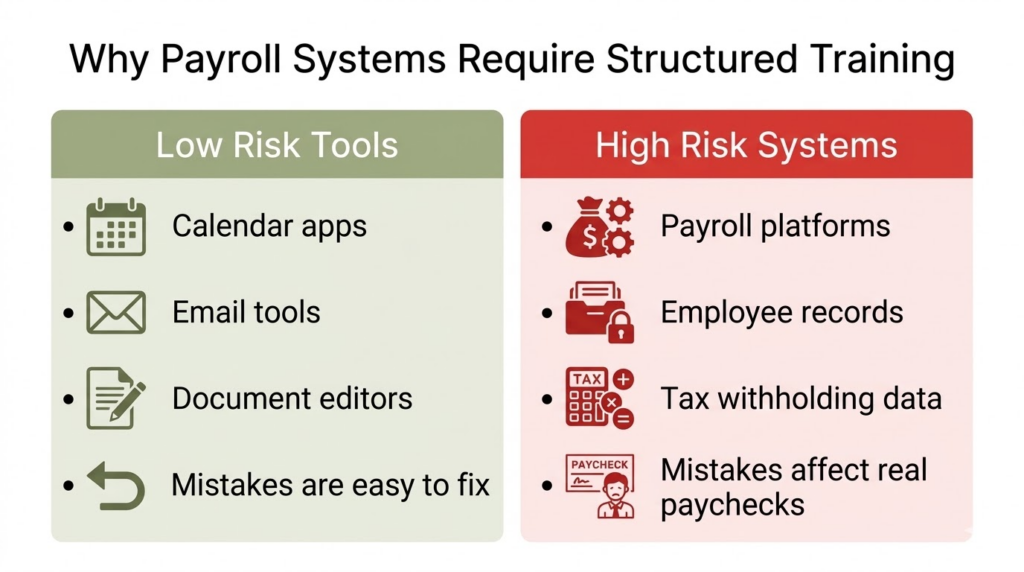
Training an EA on your calendar tool or email client is forgiving. If something goes wrong, you fix it and move on. Payroll is not forgiving in the same way. A data entry error during employee onboarding can create cascading tax issues. An accidental termination in a system like Gusto or ADP can trigger offboarding workflows that are time-consuming to reverse. Incorrect pay rates submitted before an approval cycle completes can mean someone receives the wrong paycheck.
The American Payroll Association identifies payroll staff training as a primary factor in error prevention, noting that the volume of compliance requirements, wage and hour regulations, and recordkeeping rules makes structured training necessary rather than optional. Bureau of Labor Statistics occupational guidance on payroll administration confirms that this is one of the more compliance-sensitive administrative functions in any organization.
The International Association of Privacy Professionals has found that 85% of data breaches are unintentional rather than malicious. That number is a useful frame for thinking about EA access: the risk is rarely bad intent. It is unfamiliarity with a system combined with access that exceeded what training supported.
The principle that follows from this: match access levels to demonstrated competency, not to job title or tenure.
Understanding access levels before you start training
How role-based permissions work
Every major payroll platform uses role-based access control, which means you can define exactly what a user can see and do within the system. The common access categories across platforms are:
- View only: The user can see information but cannot change anything.
- Edit with approval: The user can prepare and submit changes, but those changes require a second admin to approve before they take effect.
- Full access: The user can view, edit, and submit changes without additional approval.
Most platforms allow granular permission control beyond these three categories. ADP, for example, uses six security roles ranging from self-service user (view own information only) through security master (highest-level administrative access), with custom security groups that control which modules and data fields each role can access. Gusto’s permission structure includes separate controls for payroll, hiring, terminations, time tracking, benefits, compensation, and documents, each configurable independently. An EA familiar with ADP and Gusto will recognize these permission structures, but for a new hire, your first training task is explaining how the platform’s access model works before touching any live data.
Deciding what your EA actually needs access to
Before training begins, define the tasks your EA will handle. Access should match tasks, not aspirations.
- Pulling reports and accessing employee records: view only.
- Updating employee contact information: limited edit, ideally with approval.
- Entering time and attendance data: edit with review.
- Preparing payroll for processing: edit with approval workflow enabled.
- Adding new employees: edit with close supervision during training.
- Terminating employees: typically restricted to senior staff regardless of EA experience level.
More access than needed does not make your EA more useful. It increases risk without adding capacity.
The three-stage training sequence
The executive assistant 30-60-90 plan provides a broader onboarding structure, but payroll systems EA training follows its own progression. Each stage is testable and the transition between stages is based on demonstrated performance, not time elapsed.
Stage 1: view-only access (weeks 1-2)
Start with view-only permissions across all relevant modules. Your EA can see everything they need to understand the system without the possibility of making accidental changes. This stage is about orientation, not execution.
Training focus during Stage 1:
- Navigation through employee records, payroll history, and report sections.
- Platform-specific terminology (pay periods, deduction types, employee classification categories, cost centers).
- Data structure: how information is organized and where specific fields live.
- Report generation for the reports you need pulled most frequently.
Competency check before advancing to Stage 2:
- Locates specific employee records independently without guidance.
- Generates standard reports without step-by-step direction.
- Explains the difference between key data fields accurately.
- Navigates between modules without getting lost.
Stage 1 typically takes one to two weeks depending on platform complexity and your EA’s prior experience with similar systems.
Stage 2: edit with approval (weeks 3-4)
Expand permissions to allow editing, but keep approval workflows active so all changes require your review before they process. Gusto’s Payroll Approvals feature is well-designed for this stage: it separates edit access from submit access cleanly, which means your EA can prepare payroll completely but cannot submit it without an admin with full access approving the run. ADP’s security group structure allows similar separation at the module level.
Training focus during Stage 2:
- Data entry accuracy: updating employee information, entering hours, processing routine changes.
- Verification habits: reviewing work before submitting for approval rather than submitting and hoping.
- Error recognition: identifying when a number, date, or code looks wrong before it becomes a problem.
- Documentation: recording what was changed, when, and why.
Tasks appropriate for Stage 2:
- Updating employee contact information (address, phone, emergency contact).
- Entering time and attendance data for review.
- Processing routine changes (direct deposit updates, benefits elections during open enrollment).
- Preparing payroll data for your approval.
Competency check before advancing to Stage 3:
- Submits changes with minimal errors requiring correction across multiple weeks.
- Catches own mistakes before submitting rather than after approval reveals them.
- Asks appropriate questions when facing unfamiliar situations rather than guessing.
- Documents changes consistently without being reminded.
Stage 2 typically takes two to four weeks depending on task volume and complexity.
Stage 3: expanded access with verification (week 5 and beyond)
Once your EA demonstrates consistent accuracy in Stage 2, you can expand permissions based on what their role actually requires. SHRM’s guidance on access control emphasizes the principle of least privilege: users should have the minimum access necessary for their job, which means expanded access at Stage 3 is not unlimited access. It is access calibrated to the tasks they have demonstrated competency in.
Training focus during Stage 3:
- Processing complete workflows independently from start to finish.
- Handling exceptions and edge cases (late time entries, retroactive changes, mid-cycle corrections).
- Escalation protocols: knowing when to stop and ask rather than proceed through uncertainty.
- Audit preparation: maintaining clean records that hold up to review.
Access decisions at Stage 3 require judgment on your part:
- Payroll submission: many firms maintain approval workflows even at this stage as a standing quality control measure, not a reflection of EA capability.
- Employee terminations: most firms restrict this to senior staff regardless of EA tenure or competency.
- Compensation changes: high-stakes changes often warrant permanent second-approval requirements.
Ongoing verification at Stage 3 means spot-checking work periodically, reviewing audit logs for unusual patterns, and conducting quarterly competency reviews. The checks become lighter as confidence builds, but they do not disappear entirely.
Platform-specific training notes
ADP has a more complex interface than most payroll platforms, with extensive customization options and compliance features built for enterprise use. Expect a longer training period, typically four to six weeks to reach Stage 3 competency. ADP’s built-in security groups give you precise control over access during each stage, and ADP’s own training resources are worth using for technical module navigation.
Gusto is the most approachable platform to train on, with a user-satisfaction rating of 4.7/5 and an interface designed for first-time users. The Payroll Approvals feature makes Stage 2 training straightforward to structure, and Custom Roles allow you to configure permissions precisely for what your EA needs. Expect two to three weeks to reach meaningful independence on most functions.
Paychex Flex has an interface that feels dated compared to Gusto but is reliable once learned. Paychex offers 24/7 access to certified HR professionals through their support channels, which is useful for EAs who will encounter edge cases during training and need answers quickly.
For firms managing multiple platforms, train thoroughly on one platform first until your EA reaches Stage 3. Learning one system’s underlying logic, including how payroll periods work, how employee records are structured, and how approvals flow, makes training on subsequent platforms significantly faster. Training on ADP and Gusto simultaneously during the first two months is one of the more common mistakes in this process.
Reviewing virtual executive assistant technical skills benchmarks can help you set realistic proficiency expectations by platform before training begins.
Error prevention protocols
Before submitting any change
Build the habit of reviewing before submitting from the first day your EA has edit access. The specific steps:
- Review the change you are about to make against what was requested.
- Confirm you are in the correct employee record (common error: updating the wrong employee with a similar name).
- Verify dates, amounts, and classification codes against source documentation.
- When uncertain, save as draft and ask rather than submit and correct.
High-risk actions to flag
Certain actions in any payroll system should always trigger a pause, regardless of your EA’s access level or experience. Train your EA to treat these as “stop and confirm” moments:
- Terminating an employee.
- Changing pay rates, salary, or compensation structure.
- Modifying tax withholding elections.
- Processing final paychecks.
- Any change that affects more than one employee record at a time.
Creating a verification checklist
For recurring tasks like payroll processing, a checklist eliminates the variability that leads to skipped steps during high-volume periods. A standard payroll processing checklist for EA use:
- Confirm pay period dates match the current cycle.
- Verify hours entered for all active employees.
- Check for pending time off requests not yet reflected.
- Review any manual adjustments or one-time changes.
- Scan for numbers that appear unusually high or low compared to prior periods.
- Submit for approval (or flag for your review if anything looks off).
Verifying competency before expanding access
What to measure
The indicators that predict readiness for expanded access are behavioral, not time-based.
- Error rate: how often do submitted changes require correction?
- Independence: how frequently does your EA ask for help with routine tasks they have done before?
- Judgment: does your EA ask questions when facing unfamiliar situations, or proceed through uncertainty?
- Documentation: are changes recorded clearly and consistently without prompting?
When to expand access
Expand access when your EA demonstrates:
- Consistent accuracy over multiple weeks, not a few good days.
- The habit of catching their own mistakes before submitting.
- Understanding of why procedures exist, not just mechanical compliance with them.
- Appropriate caution when high-stakes actions come up.
Knowing how to manage an executive assistant through this kind of competency-based progression is different from managing task completion. You are watching for judgment, not just output.
When to slow down
Red flags that indicate training needs more time before access expands:
- The same type of error repeated after specific feedback on it.
- Submitting changes without the verification review step.
- Not asking questions when facing unfamiliar situations.
- Resistance to verification steps (“I already checked it”).
These patterns are more informative than time elapsed. An EA who reaches week six but still shows these patterns is not ready for Stage 3, regardless of the calendar.
Documentation requirements
What to document
Keep records throughout the training process:
- Training completed: dates, topics covered, platforms included.
- Competency assessments: what was tested, results, gaps identified.
- Access granted: when each access level was assigned, which platforms, which modules.
- Errors identified and how they were addressed, with dates.
- Access changes: expansions or restrictions and the reason for each.
Why documentation matters
Documentation does several things simultaneously. It demonstrates due diligence if an error occurs and a client or employee asks how it happened, provides a clear record for audits, which payroll operations are subject to regularly. It creates a consistent reference when training the next hire, so you are not rebuilding the process from scratch. The building trust with remote EA process develops over time, and a documented training record is part of what makes that trust concrete rather than assumed.
The staged approach is not about limiting your EA’s usefulness. View only, then edit with approval, then expanded access based on demonstrated performance: this sequence builds the kind of predictable, repeatable capability that lets you stop watching the audit log every time they log in.
Training takes time upfront. What it pays back is fewer errors, less rework, and confidence in how payroll is handled across your client accounts. Learn how Outsourced Scale pre-trains EAs on major payroll platforms. Schedule a conversation to discuss what that looks like for your firm.
FAQs about EA payroll system training
Gusto’s interface typically allows EA competency within 2-3 weeks; ADP’s more complex structure usually requires 4-6 weeks, but the key variable is demonstrated competency at each stage rather than time elapsed.
Not immediately, and possibly not ever for certain functions; even experienced EAs benefit from approval workflows on payroll submission because the second review catches errors that familiarity can cause you to miss, which is error prevention rather than a trust issue.
Submitting changes without verification first; whether entering hours, updating employee records, or preparing payroll, most errors come from skipping the review step, which is why building that habit from Stage 1 prevents the majority of issues.
Look for consistent accuracy across multiple weeks, the habit of catching their own mistakes before submitting, and appropriate questions when facing unfamiliar situations; if you still feel uneasy when they log in, they are not ready regardless of how much time has passed.
Yes, and this is standard for HR consulting firms with diverse clients, but train to Stage 3 on one platform before introducing a second, because the underlying payroll logic transfers and makes each subsequent platform faster to learn.
Fix the error first and communicate with anyone affected, then investigate whether the root cause was a training gap, a process failure, or a judgment issue, document the incident and resolution, and reassess whether the current access level remains appropriate.